
How to connect Salesforce to LinkedIn for contact creation and enrichment
Automate Salesforce data enrichment by connecting LinkedIn to your CRM. Here’s why you should connect Salesforce and LinkedIn, and how you can get started today.


Salesforce LinkedIn integration: How to automate contact creation & enrichment without Sales Navigator
Adding LinkedIn contacts to Salesforce is still a manual process for most teams. You copy a name, paste a title, type in the company, and hope you can find a valid email or phone number. The result is slow data entry and records that are often incomplete or duplicated.
Many teams assume Sales Navigator is the only way to fix this. But what you need is a tool that can take LinkedIn signals and turn them into complete Salesforce records automatically.
LoneScale is a signal-based orchestration platform that does exactly that. It monitors job changes and new hires in your target accounts, enriches each contact with verified data, and writes clean records back into Salesforce so your CRM stays accurate and ready for outreach.
In this article, we show you how to replace that manual workflow with automated contact creation and enrichment via a Salesforce Chrome extension for connecting Salesforce and LinkedIn. (without using Sales Navigator). We also look at how this solution, LoneScale, structures, verifies, and updates each record so Salesforce stays clean and ready for outreach.
Why connect LinkedIn to Salesforce?
A Salesforce LinkedIn integration turns profile views, job changes, and new connections into structured records inside your CRM. Instead of reps copy-pasting names and titles, LinkedIn data is mapped into the right Salesforce fields, checked against existing records, and enriched with verified emails and phone numbers.
It also makes lead routing, reporting, and sales engagement reliable, because Salesforce is always working with current roles, companies, and decision-makers.
Copy-pasting LinkedIn data into Salesforce is not a good idea
Copy-pasting profile information from LinkedIn into Salesforce introduces inconsistent, low-quality data because every rep enters fields differently. For example, one rep types “VP Sales,” another writes “Vice President of Sales,” and someone else enters “VP, Sales.” The same happens with company names (“Acme Inc” vs “Acme Incorporated”) and locations (“NYC” vs “New York, NY”). Once these variations live in the same fields, your matching rules, segmentation, and reports don’t behave as expected
Salesforce has three main components that are meant to keep this under control:
- Validation rules tell Salesforce when a record is allowed to be saved. For example, you might enforce that ‘Country’ must be selected from a drop-down list, that “Email” is required for all Contacts, or that ‘Account Name’ must follow a specific format.
- Duplicate rules compare key fields such as email, name, or company when a record is created or updated
- Field history tracking logs every change to selected fields, so you can see who changed a title, email, or account name and when. This is important for audits and for teams that need SOC 2 or ISO-aligned data governance.
In theory, these controls protect your CRM. But in practice, manual copy-paste often breaks them:
- If someone enters a slightly different spelling of the same company or a personal email instead of the work email, the duplicate rule might not see it as the same contact and will allow a new record.
- If reps overwrite standardized values with their own wording, the field history will show the change, but the data itself is now out of line with your internal standards.
The result is that instead of updating one clean, standardized record, reps accidentally create second versions of the same contact or ‘dirty’ the field. This creates problems for lead routing, attribution, and sales engagement platforms that expect Salesforce data to be structured and predictable.
The native LinkedIn Sales Navigator integration fails high-volume prospecting
The Salesforce–Sales Navigator integration is useful when reps work a small number of accounts from inside the Sales Navigator UI. It lets them see some Salesforce context while they browse LinkedIn, but it does not behave like a full data integration into your CRM.
By default, the integration only syncs a limited set of profile fields and does not push complete contact records into Salesforce. You cannot reliably take every LinkedIn profile a rep touches and turn it into a standardized Salesforce Contact with verified email, phone, and company details.
On top of that, LinkedIn applies seat limits, view caps, and API restrictions, so there is a hard limit on how many profiles a team can access or sync in a given period. As prospecting volume grows, those limits turn into delays, partial updates, and gaps in contact data that ops teams cannot use for routing, scoring, or outbound sequences.
Sync frequency is another issue. Most data moves from Sales Navigator to Salesforce in scheduled or batched updates. Large prospecting lists do not refresh as soon as someone changes role, company, or location, which means your Salesforce data lags behind and your reps keep working with outdated information.
The integration also doesn’t treat LinkedIn outreach as proper, structured Salesforce activity data. InMails, connection requests, and message threads are not written into Salesforce as individual task or event records with clear fields such as activity type, date, recipient, and outcome.
Instead, most of that activity stays inside LinkedIn or appears only as high-level engagement notes. That makes it hard for ops teams to report on LinkedIn outreaches, include them in lead or account scoring, or trigger follow-up workflows based on specific outreach steps.
Integrate LinkedIn with Salesforce in one click with LoneScale
Reps live in LinkedIn, but pipeline, routing, and reporting all live in Salesforce. If those two tools are not tied together, you get half the story in each place. A one-click integration closes that gap. Every time a rep finds a good-fit contact on LinkedIn, you create or update a clean Salesforce record with the right company, role, and verified contact details, without manual copy-paste or extra tabs.
LoneScale connects LinkedIn to Salesforce in one click, so reps can turn profile views, job changes, and new connections into enriched CRM records.
Instantly create and update records from any LinkedIn page
LoneScale lets reps add or update a Salesforce record directly from a LinkedIn profile with one click. It extracts structured fields like name, title, company, and location, and enriches them with verified contact details when available. And since the data is standardized before saving, Salesforce receives a complete, correctly formatted record that updates the right Lead or Contact instead of creating duplicates.
Access and update Salesforce data without leaving LinkedIn
LoneScale displays the matching Salesforce Lead or Contact directly on the LinkedIn profile, so reps can confirm whether the record already exists and make updates immediately. Any changes made on LinkedIn are written back to Salesforce with the correct field mappings and formats, keeping titles, company details, and ownership accurate without switching tabs or searching the CRM.
Streamline the daily workflow: check, enrich, and sync
LoneScale turns routine LinkedIn research into a direct Salesforce update workflow. Reps can review a profile, fill missing fields, add verified contact details, and sync everything to Salesforce in one sequence. This removes the stop-start pattern of checking CRM records, opening enrichment tools, and revisiting LinkedIn pages. The entire review → enrich → sync cycle happens in a single pass, keeping records complete with fewer steps.
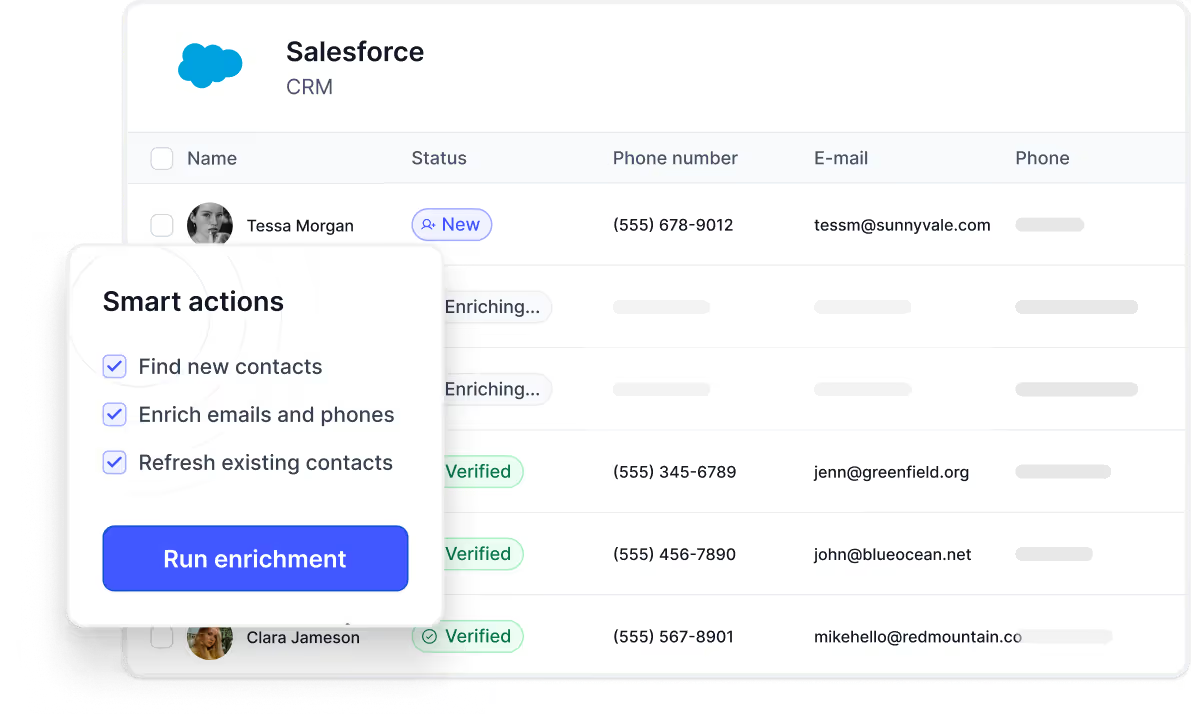
Ensure data integrity: block duplicates and keep Salesforce clean
Every action taken through LoneScale runs through Salesforce matching rules before anything is written. If a Lead or Contact already exists, LoneScale updates the existing record instead of creating a new one.
If field formats don’t meet Salesforce standards, the system corrects them before saving. This prevents fragmented profiles, maintains accurate ownership, and keeps routing, reporting, and attribution aligned with how the CRM is structured.
Daily sales rep workflow with Salesforce LinkedIn integration via LoneScale
For reps to have a true from LinkedIn to Salesforce in one click workflow, ops needs to wire things up first. This section walks through the full flow, starting with a light admin setup and ending with the daily steps a sales rep follows.
Step 1: Install and connect LoneScale to Salesforce
Start by connecting LoneScale to your Salesforce org so enrichment can flow between both systems.
- Sign in to LoneScale or set up a new account if you do not already have one.
- Connect your Salesforce org from LoneScale. In LoneScale, open the Salesforce integration, start the OAuth flow, and authorize access so LoneScale can read and update Salesforce from LinkedIn.
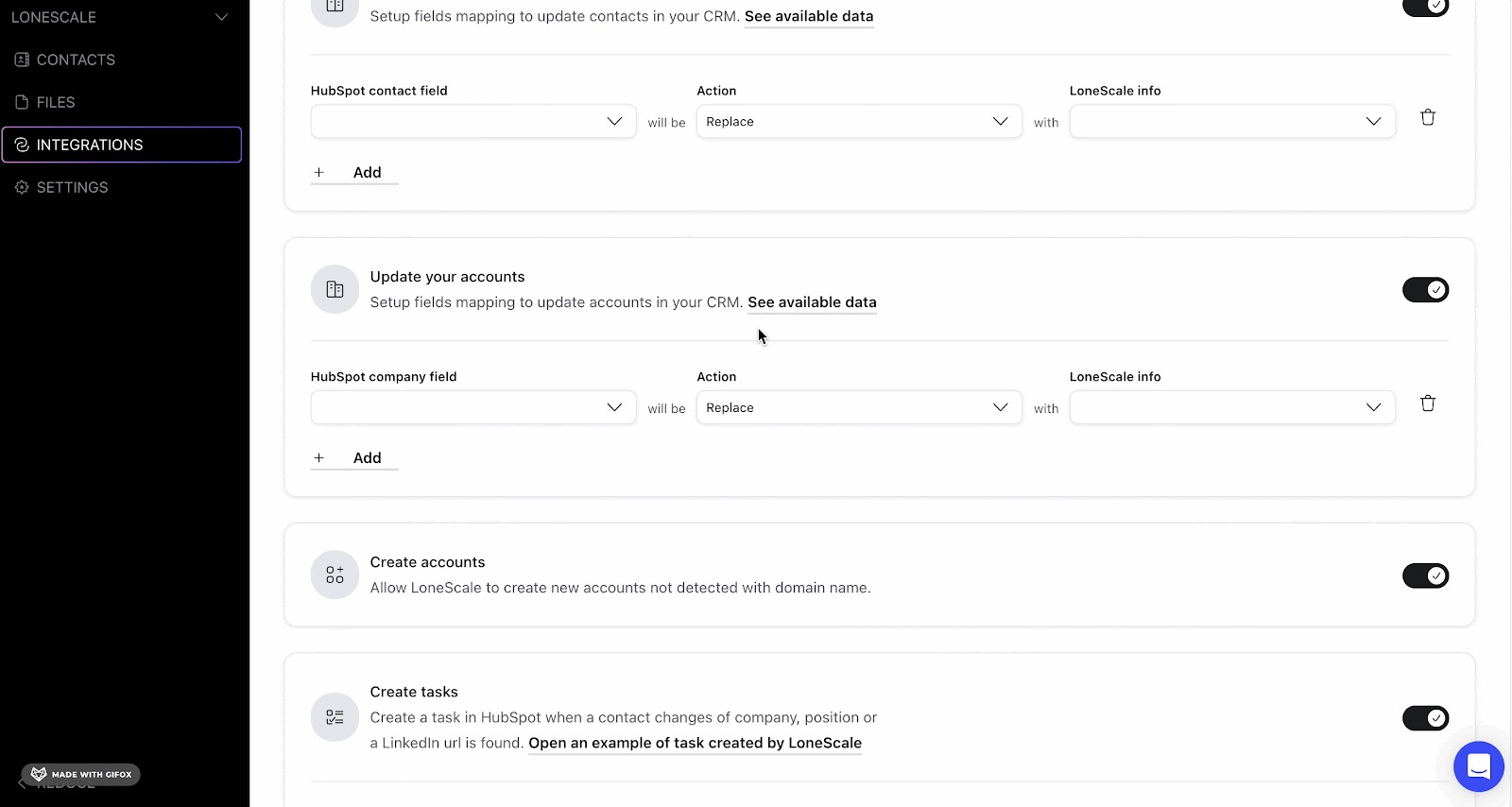
- Map Salesforce fields to LoneScale fields. In the integration settings, map LoneScale fields to the Lead, Contact, and Account fields you want to enrich in Salesforce. For example, choose which Salesforce fields should store the LinkedIn URL, job title, company, email, and phone number, and set whether LoneScale can replace existing values or only fill empty fields.
Step 2: Build the enrichment workflow for LinkedIn-sourced contacts
In this step, you tell LoneScale which LinkedIn-sourced contacts to enrich, what data to pull (LinkedIn info, emails, phones, company data), and how often to refresh them, so Salesforce always has an up-to-date version of those records.
- In LoneScale, create a new Enrich Contacts/Enrich LinkedIn Profile & MQL workflow.
- In the enrichment settings, enable LinkedIn information enrichment for contacts and their company.
- If you want verified contact details, turn on the enrichment waterfall to find emails and phone numbers from your chosen providers.
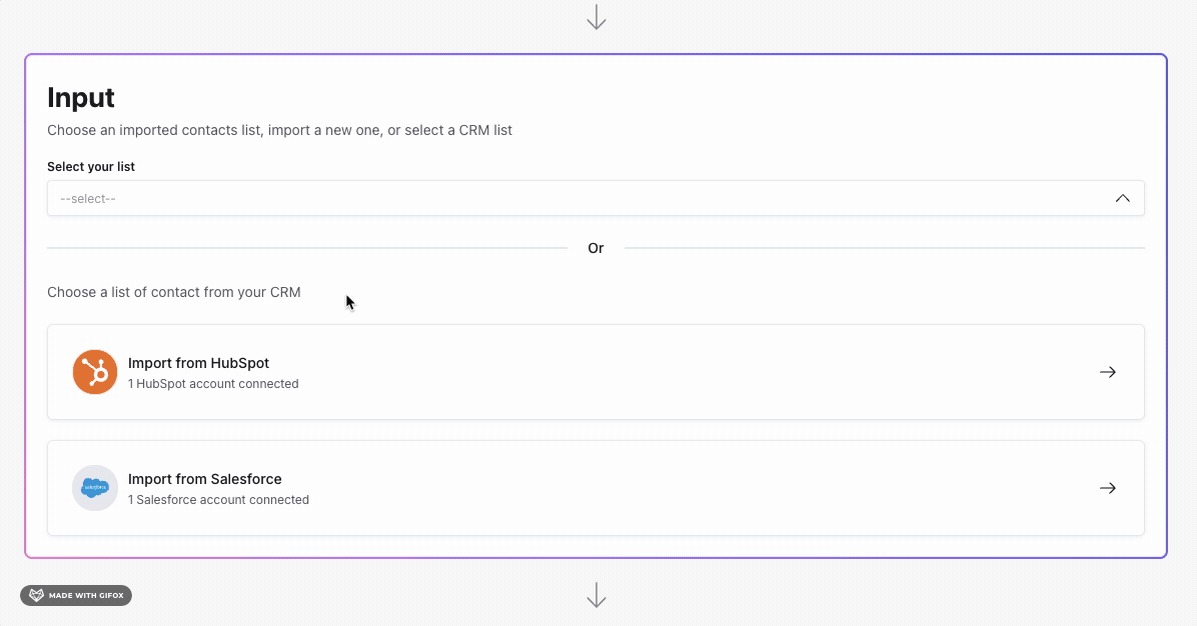
- Select your input list: pick a Salesforce contact list or report, or a CSV/HubSpot list that contains contacts originally sourced from LinkedIn.
- Set Salesforce as the output integration so enriched fields are written back into your mapped Lead, Contact, and Account fields.
- Choose the workflow frequency: use ‘One shot’ for a single enrichment run, or ‘Run every X days’ if you want LoneScale to keep those LinkedIn-sourced contacts updated as people change jobs or roles.
Step 3: Add the LoneScale buttons inside Salesforce
Now you add LoneScale’s one-click actions to Lead, Contact, and Account pages so reps can trigger enrichment from inside Salesforce.
- In Salesforce, open a Lightning record page for Lead, Contact, or Account and click the gear icon, then select ‘Edit Page.’
- Click the Highlights Panel, then choose ‘Add Action.’
- Search for the LoneScale object-specific quick actions and add:
- For Leads: Enrich Leads – LS
- For Contacts: Enrich Contacts – LS
- For Accounts: Find New Contacts – LS
- Reorder the actions so the LoneScale buttons appear in the main button row, then save and activate the page layout.
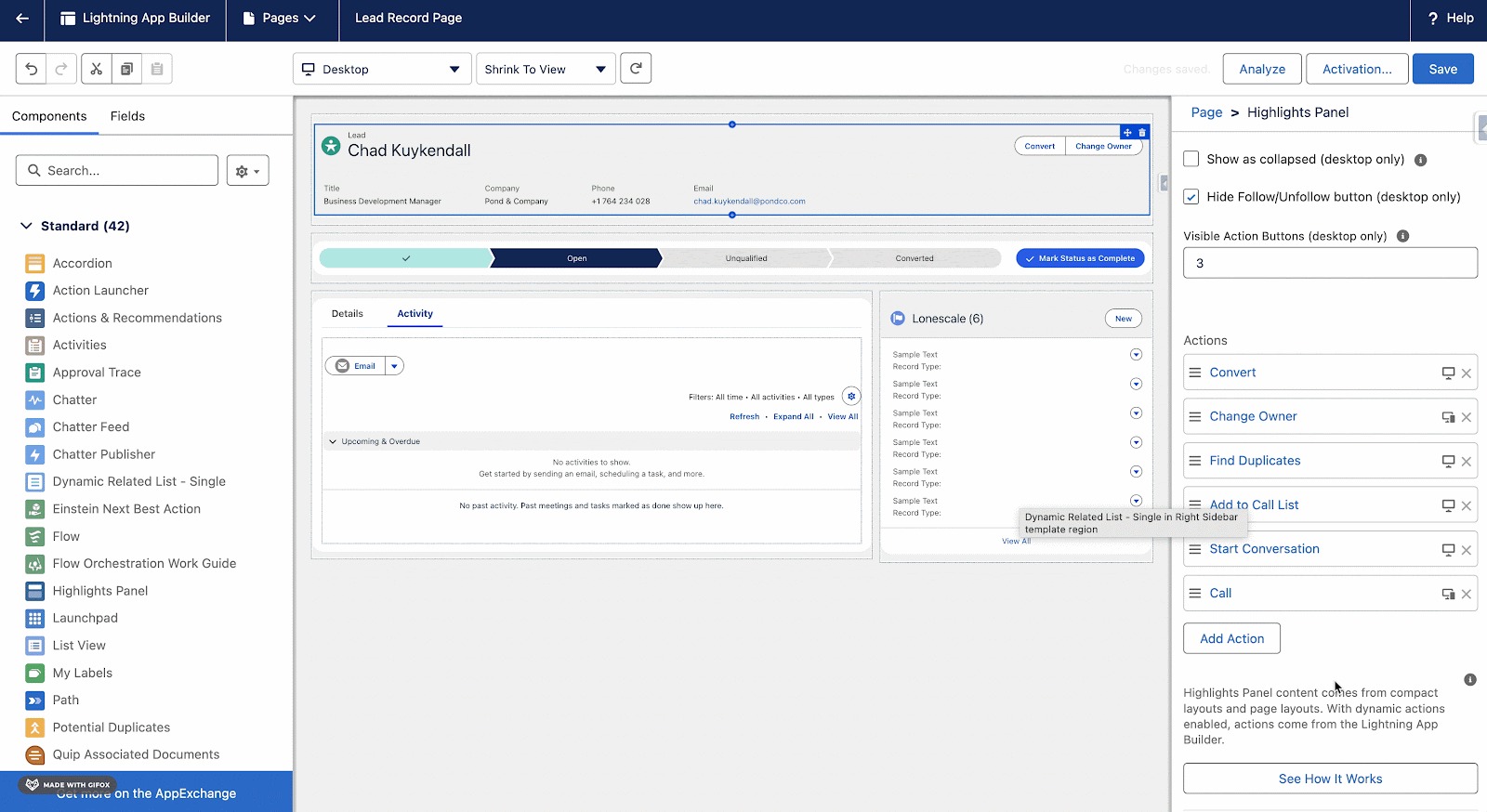
At this point, the admin work is done: LoneScale is connected, workflows are set up, and the buttons are visible in Salesforce. The remaining steps cover what a sales rep does day to day using this setup.
Step 4: Check if the contact already exists in Salesforce
As a rep, the first step is to see whether the person you’re looking at on LinkedIn is already in Salesforce.
- On LinkedIn, open the profile of a prospect you want to work on. This could be from a search result, a company page, a buying-committee list, or an inbound profile visit.
- When you view the profile, LoneScale automatically checks Salesforce in the background using the matching rules your admin has set up (for example, name plus company and other mapped fields).
- If the person already exists in Salesforce, LoneScale shows the matching Lead or Contact along with the current owner and status.
- If no record is found, the profile is clearly marked as new.
You don’t have to search Salesforce yourself; the existence check is triggered and identified automatically.
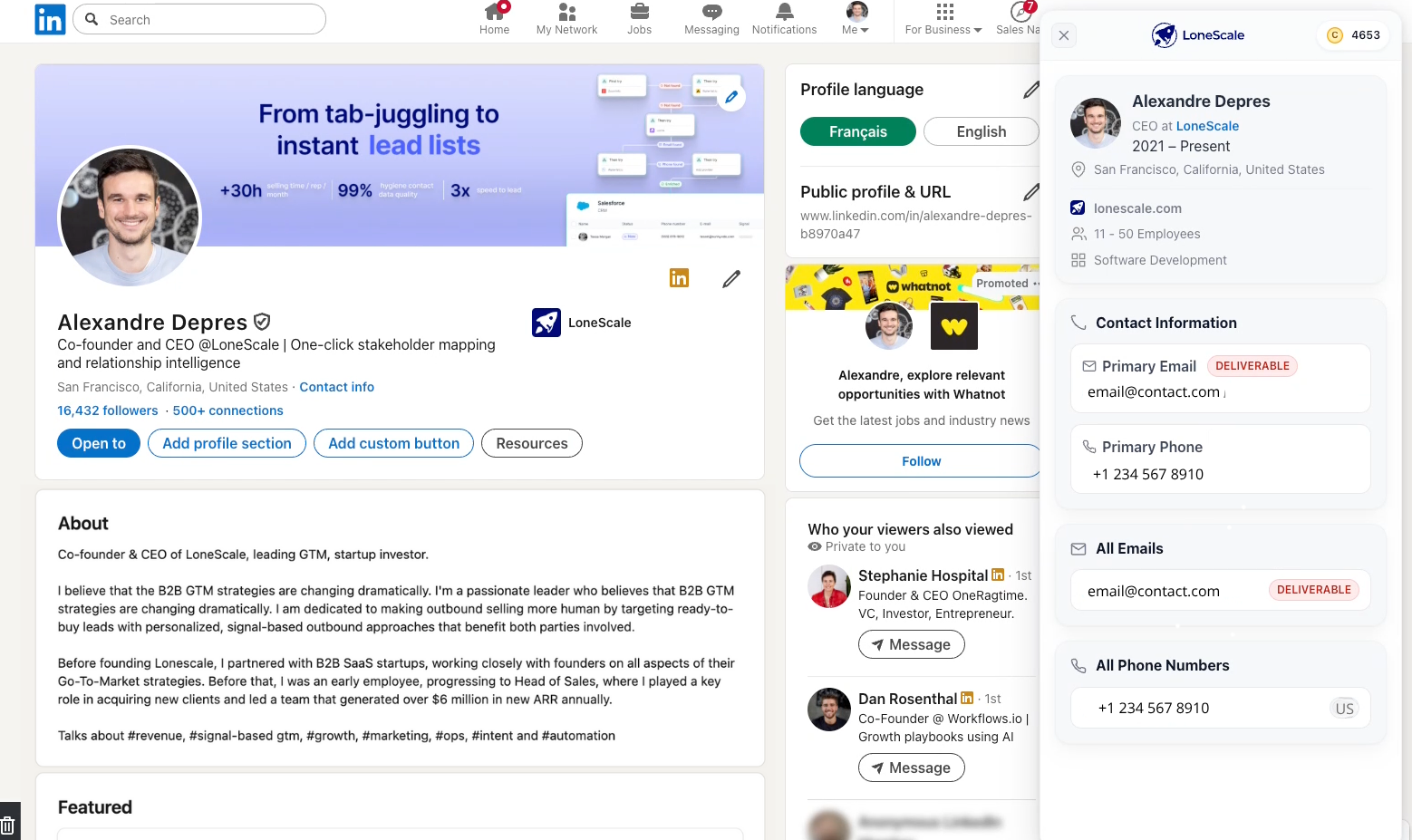
Step 5: Enrich with email and mobile, then sync
Once you know whether the contact already exists, use LoneScale to fill in any missing details directly from the LinkedIn profile.
LoneScale identifies which fields in Salesforce are incomplete—typically email, mobile number, or job information—and retrieves verified data through its enrichment engine. You can confirm the fields you want to update, and LoneScale writes the information back to Salesforce using the correct mappings set by your admin. This turns the record into an outreach-ready profile without leaving LinkedIn or manually editing the CRM.
If the workflow is set to run every X days (from step 2), LoneScale will keep tracking that contact for job changes and refresh Salesforce automatically in the background.
Step 6: Associate the contact with the correct account
After enrichment, the final step is to make sure the contact sits under the right Salesforce Account so ownership, routing, and reporting stay accurate.
- LoneScale uses the company information on the LinkedIn profile (name, website, and enriched firmographic data) to suggest the matching Salesforce Account.
- You review the suggestion and either confirm it or choose a different Account if there are duplicates or similar names.
- Once confirmed, LoneScale updates the association in Salesforce so the contact is linked to the correct Account and buying committee.
From that Account, you can also use the Find New Contacts – LS action to pull in additional decision-makers at the same company and enrich them using the same workflow.
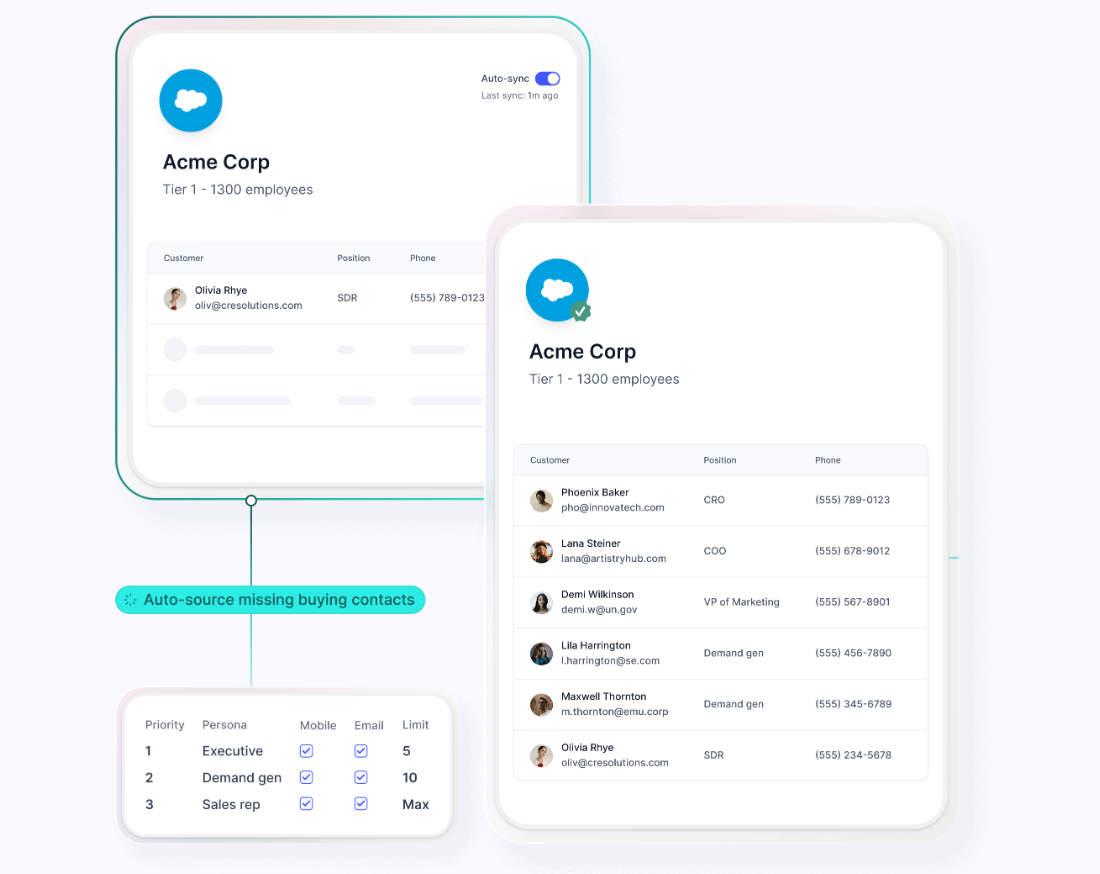
Replace manual process friction with automated sales momentum
When a rep from your Sales team finds a good prospect on LinkedIn, that person should become a clean, usable record in Salesforce. Key fields like email, company, role, and account link should already be filled in, so the rep can move straight to routing, sequencing, or outreach instead of copying data across tabs. This cuts down on manual entry, reduces duplicate records, and makes it easier to see who your team is speaking to.
LoneScale makes that automated workflow repeatable at scale. It checks whether a contact already exists in Salesforce, uses Waterfall Enrichment to fill in missing contact fields with a structured, automated sequence, applies country-level accuracy rules, and writes everything into the Salesforce fields your RevOps team has mapped. The rep only has to pick the right person on LinkedIn, trigger enrichment, and work from the updated record.

Why integrate a People Finder API into CRMs, products, and systems
How to connect Salesforce to LinkedIn for contact creation and enrichment
.png)
Your guide to waterfall enrichment: Process and best practices

.png)



Top 10 Sales Automation Tools for B2B Teams

Prospect smarter with live stakeholder mapping
One click in Salesforce reveals the entire verified buying committee with accurate contact details and keep stakeholders up-to-date. It’s not just “updated often” — it’s actually live.